


Find the Fastest DNS Server for your Computer with Namebench
What if your ISP’s (Internet Service Provclasser) DNS Server is faster than alternatives like Google Public DNS or OpenDNS. Well its easy to know, grab Namebench and in less than 10 minutes you’ll know which free public DNS service is the best option for your computer. Namebench is a free benchmarking tool that searches for the fastest DNS servers for your computer by pitting your current DNS servers against free alternatives.
Namebench is a free download for Windows, Mac OS X and Unix. Linux (Ubuntu) users need to download and extract the tarball into the home folder, cd into the the extracted namebench folder and run it with ./namebench.py. You can permanently install it with sudo python setup.py install
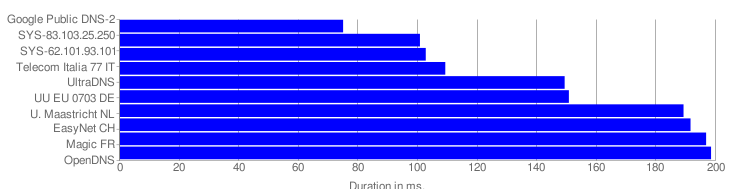
At the end of the test, Namebench generates handy charts in .csv and html in your /tmp folder which display the results of the test (see screenshots above). In my case Namebench claims Google Public DNS-2 [8.8.4.4] is 37% is faster than my current primary DNS server, which is also my ISP’s DNS Server, so it just time to switch. Thanks @vasiauvi
Namebench is a 20% project at Google Code.
1:10 am on December 29th, 2009
Find the Fastest DNS Server for your Computer with Namebench http://bit.ly/8hXHRL
4:39 pm on December 29th, 2009
Find the Fastest DNS Server for your Computer with Namebench #LInux #windows http://bit.ly/6tGhaC
4:57 pm on December 29th, 2009
RT @kabatology Find the Fastest DNS Server for your Computer with Namebench #LInux #windows http://bit.ly/6tGhaC http://bit.ly/8i8eeU
10:26 pm on January 9th, 2010
I tried this and found a DNS server I believe is faster by 17%. How do I make the change? Using Ubuntu 9.10.
Thanks
10:35 pm on January 9th, 2010
I found out – needed to install network-admin to change DNS settings. Great article and useful.
Thanks and keep up the good work.
10:49 pm on January 9th, 2010
@Randy3011: Changing DNS server settings on Ubuntu
1. In the System menu, click Preferences, then click Network Connections.
2. Select the connection for which you want to configure the DNS.
* To change the settings for an Ethernet connection, select the Wired tab, then select your network interface in the list. It is usually called eth0.
* To change the settings for a wireless connection, select the Wireless tab, then select the appropriate wireless network.
3. Click Edit, and in the window that appears, select the IPv4 Settings tab.
4. If the selected method is Automatic (DHCP), open the dropdown and select Automatic (DHCP) addresses only instead. If the method is set to something else, do not change it.
5. In the DNS servers field, enter the wanted IP addresses, separated by a space eg: 8.8.8.8 8.8.4.4
6. Click Apply to save the change. If you are prompted for a password or confirmation, type the password or provide confirmation.
7. Test that your setup is working correctly; sudo traceroute -n -w 2 -q 2 -m 30 your_new_DNS
8. Repeat the procedure for additional network connections you want to change.
3:38 am on February 26th, 2010
Great programme thanks.
I’m running Ubuntu 9.04. Now I’ve permanently installed it with ‘sudo python setup.py install’ how am I supposed to run it?
I can still start it by going to the namebench folder and typing ‘./namebench.py’ but I don’t see any simpler alternative and I can’t see anything in the Ubuntu menu.
Have I missed something?